What Is a Touch Screen and How Does It Work?
A Touch Screen lets people control a device by touching its display with a finger or compatible stylus. A tap can open an app, while a swipe moves a page or image. These actions feel direct, but the screen must detect contact and translate it into a command. It feels simple. The technology underneath is more complex.
Many modern phones and tablets use capacitive sensing. A transparent conductive layer detects changes in the display’s electrical field when a finger approaches or touches the surface. Other devices use resistive screens, which register pressure between thin layers. Each approach has trade-offs in cost, sensitivity, durability, and support for gloves or styluses. The screen also works with software that interprets gestures and sends instructions to the device. A delay or missed touch may come from the sensor, the software, or even a damp surface, so the cause is not always obvious. There is nuance.
Understanding how a Touch Screen works helps explain why some displays respond differently in cold weather, with gloves, or after damage. It also makes everyday troubleshooting less mysterious. This guide introduces the main screen types, the sensing process, and the parts that turn a fingertip’s movement into an on-screen response. The details vary by device, and a simple explanation cannot cover every design. That limitation matters.
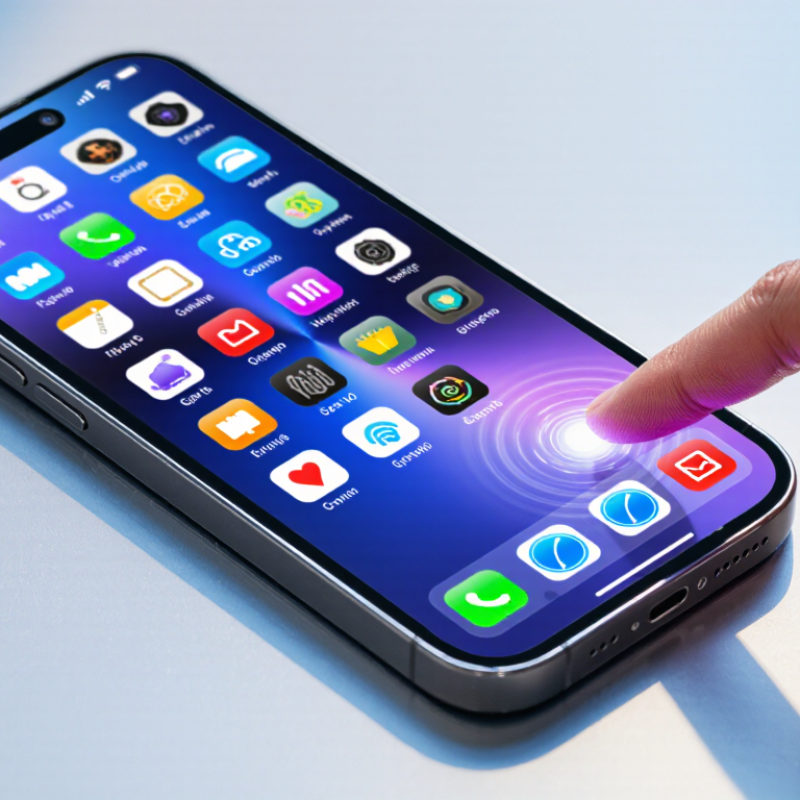
Touch Screens: Definition and Core Function
What Is a Touch Screen and How Does It Work?
Touch Screens: Definition and Core Function
A touch screen is an input surface that lets people control a device by touching displayed elements. It combines a screen with sensors that detect where contact occurs. The device turns that location into a command, such as opening a menu or moving a cursor. In this way, the display provides visual feedback while the touch sensor receives input. The screen itself does not “understand” a finger; software interprets the signal.
Different touch screens sense contact in different ways. A resistive screen detects pressure between flexible layers, while a capacitive screen registers changes in an electrical field. Many phones use capacitive sensing, which responds to a fingertip but may not work with ordinary gloves. Other systems use light or sound to locate a touch. The core process is similar: detect contact, identify coordinates, and send them to software. A tap can feel instant, though small delays or inaccurate calibration may make a screen seem less responsive. This basic explanation leaves out some engineering details, but it captures the main function.
Tips: Tap the center of small buttons, keep the screen clean, and check touch settings if input feels inaccurate. Try one adjustment at a time; the cause is not always obvious.
The Main Components of a Touch Screen
A touch screen is a layered assembly, not just a pane of glass. The outer cover protects the surface from scratches and everyday knocks. Beneath it, a touch sensor detects where a finger or stylus makes contact. In many screens, transparent conductive patterns sense changes in the local electrical field. Other designs use pressure between thin layers. The method depends on the device.
The sensor sends electrical signals to a controller. That small circuit filters the signals and calculates touch coordinates. The display then shows the image, while software interprets a tap, swipe, or pinch. These parts must work in close alignment. A slight offset can make a button feel misplaced. It is easy to underestimate that detail.
Adhesive layers bond the stack and reduce gaps that could affect clarity or touch response. Cables and a frame connect the assembly to the rest of the device. Some screens combine layers to make the panel thinner, but the exact structure varies. A wet fingertip may interfere with capacitive sensing, while pressure-based designs can behave differently. The glass gets attention. The sensor does the detecting.
How a Touch Screen Detects Contact
A touch screen does not simply “feel” a finger. It detects a measurable change and estimates where that change occurred. In a common capacitive design, a thin grid of electrodes creates an electrical field beneath the glass. A fingertip changes the local capacitance, and the screen’s controller measures that shift across nearby points. It then calculates a touch position. The glass may feel solid, but the sensing happens below its surface.
Other screens use pressure. In a resistive design, two conductive layers sit slightly apart; pressing the surface brings them together and changes an electrical signal. This can work with a gloved finger or a blunt stylus, though it may feel less responsive than capacitive sensing. Different methods have different trade-offs. There is no single detection method for every screen.
The controller also has to separate a real touch from electrical noise or accidental contact. It samples the sensor repeatedly, filters unstable readings, and sends coordinates to the device’s software. Imagine tapping a small icon: the screen reports a position, while the software decides which icon lies beneath it. That boundary is not always perfect. Moisture, thick gloves, or a damaged surface can confuse detection, and I sometimes think “touch” makes the process sound more certain than it is.
How Touch Signals Become On-Screen Actions
A touch begins as a physical change at the screen surface. On many phones and tablets, a finger alters the electrical field around tiny transparent electrodes. The touch controller measures that change and estimates its position as coordinates. Simple in principle. Messy in practice.
The controller sends those coordinates to the device’s operating system, which checks what lies beneath them. A tap near an icon may become a button press; a swipe across a photo may become a request to move the image. Timing matters too. The system compares nearby touch samples to distinguish a brief tap from a drag. It also filters stray signals, since a damp screen or a resting palm can create confusing input. That filtering is not perfect.
Apps then decide what the event means in context. Touching a text field may open a keyboard, while touching the same area during a game may trigger movement. The screen does not understand intention; software infers it from location, timing, and current state. A slight delay can make a response feel wrong, even when the measured coordinates are accurate. That gap between a finger’s movement and the action shown on screen is easy to overlook.
Common Touch Screen Technologies and Their Uses
Touch screens use different methods to detect a finger or stylus. Capacitive screens sense changes in an electrical field. They are common in phones, tablets, and public kiosks because they respond quickly to light touches. Many models support gestures, such as pinching to zoom. Ordinary gloves may not work well, though some screens are designed to detect gloved hands.
Resistive screens register pressure between flexible layers. A finger, gloved hand, or plastic stylus can activate them, which suits equipment used in workshops, clinics, and some industrial settings. They may feel less smooth than capacitive screens. Still, a deliberate press can be useful when users wear protective gloves.
Infrared screens detect interruptions in a grid of light beams around the display. This design can work on large interactive boards, where several people may touch the surface at once. Surface acoustic wave screens use sound waves across a glass panel; a touch changes those waves. They can provide clear images, but moisture or dust may interfere. No method is perfect. Choosing a screen means weighing the setting, touch accuracy, durability, and likely cleaning needs. A bright, responsive display is not always the best choice if users need gloves or the surface gets wet.


